- Open: https://outlook.office.com/
- Log in using an email address that has Full Access over the Shared Mailbox
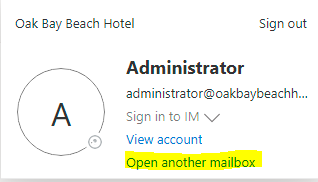
- In the top right corner you will see a circle with two letters – click on the circle:

- Select “Open another mailbox”:
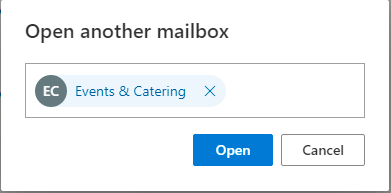
- A new dialog box will open, start typing events and select events@oakbaybeachhotel.com and click “Open”:
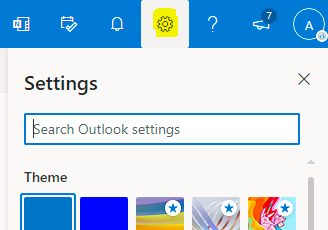
- A new window will open for the Events Outlook Online account, to set an auto reply click settings:
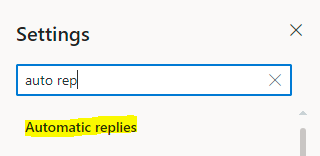
- In the search type “auto reply” and select Automatic Reply from the list:
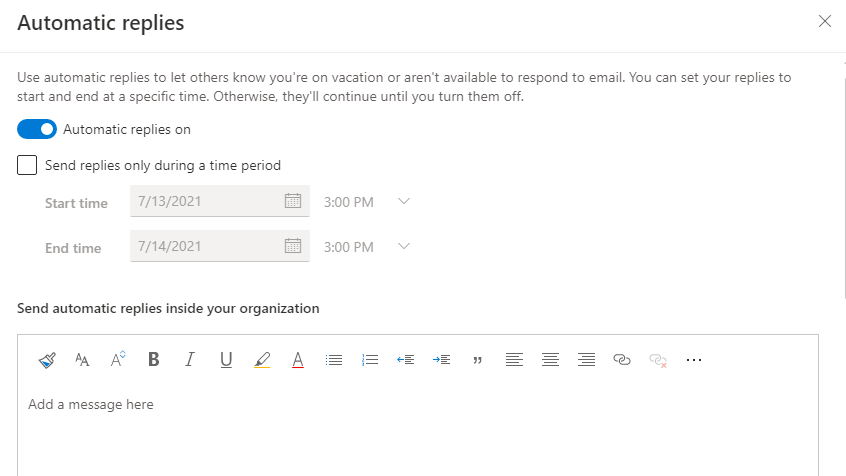
- The Automatic replies page will open, then toggle the switch to enable automatic replies and create your custom message:
July 13, 2021